A smart lock that suddenly asks for an update can feel like a bad interruption, especially when it protects the main entrance to your home. Yet choosing to update lock firmware at the right time is one of the practical ways to keep connected access reliable, responsive, and protected. The key is not to treat it like an ordinary phone update. Your lock controls physical entry, so preparation matters.
Firmware is the built-in software that tells a smart lock how to operate its fingerprint reader, keypad, motor, mobile app connection, alerts, and access features. A well-managed update can improve everyday performance. A rushed one, particularly with weak battery power or an unstable connection, can create an avoidable access problem.
Why You Should Update Lock Firmware
Smart-lock firmware updates are usually released for a clear reason. They may resolve a known issue, improve compatibility with a mobile app, strengthen wireless security, refine battery reporting, or improve the performance of a biometric sensor. On video-enabled entry devices, an update may also address notification delivery, live-view stability, or audio functions.
Not every update is urgent. If your lock is working properly and the manufacturer has not identified a security issue, it can be sensible to wait until you are home, have time to monitor the process, and can confirm that every normal entry method still works afterward. Convenience should never come before secure access.
However, postponing an update indefinitely is not the right answer either. Connected locks rely on software as well as hardware. Older firmware may eventually cause app features to behave inconsistently, limit compatibility with a newer phone operating system, or leave known issues unresolved.
For a family home, the best approach is deliberate rather than automatic: review the update notice, choose a calm time, prepare backup access, and complete the update under stable conditions.
Before You Update Lock Firmware
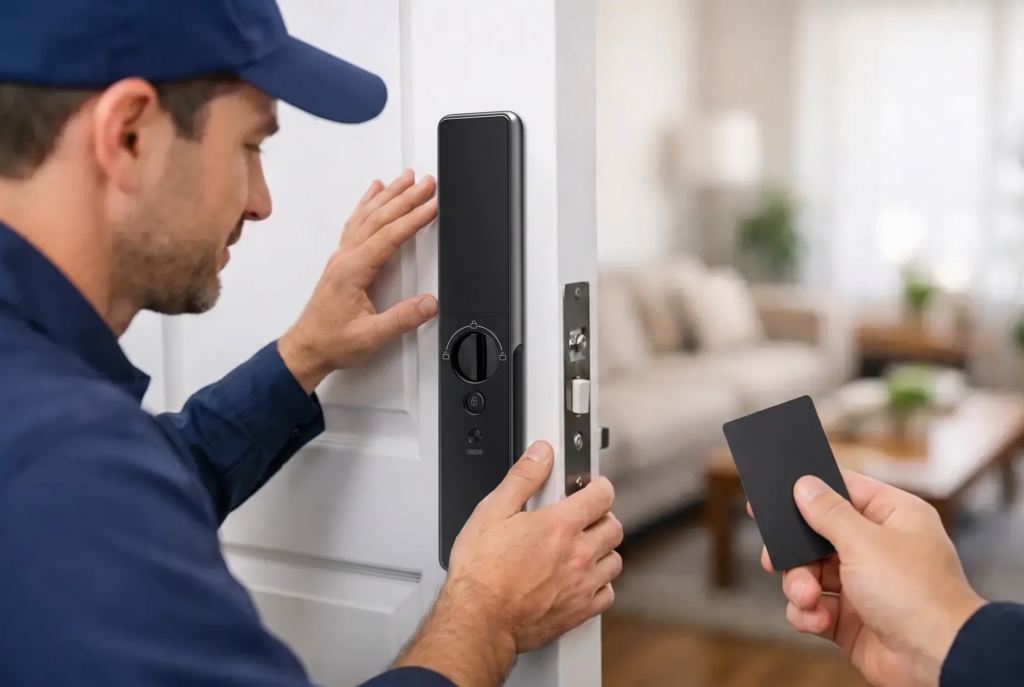
The safest firmware update begins before you open the app. First, make sure you are physically at home and able to test the door or gate afterward. Avoid starting an update just before work, school pickup, travel, or bedtime. If the lock needs attention, you want enough time to resolve it without pressure.
Battery condition matters more than many homeowners expect. Smart locks use battery power not only for daily locking and unlocking but also for the update process. If the batteries are low, replace them with fresh, high-quality batteries before proceeding. Do not assume a lock with enough power for one more unlock has enough reserve for a software installation.
You should also confirm that your phone has a stable internet connection and that Bluetooth or Wi-Fi is working as required by your model. Some locks update directly through Bluetooth when you are nearby. Others use a Wi-Fi gateway or hub. Follow the method shown in the lock’s official app, because interrupting the connection midway can cause the update to fail.
Before beginning, keep at least one reliable backup entry method available. Depending on your lock configuration, that could be a mechanical key, emergency power method, secondary door, registered passcode, or another household member who is home. For a gate lock, make sure vehicles and people can still enter or leave safely while the device is unavailable.
A simple pre-update check prevents most avoidable issues:
- Confirm the lock has fresh batteries or sufficient charge.
- Stay at the property until the update and testing are complete.
- Keep the door open and unlocked while the firmware installs, unless your manufacturer specifically instructs otherwise.
- Verify that your phone, app, and lock connection are stable.
- Have backup access ready before you start.
Keeping the door open is especially valuable. A motorized lock may restart, recalibrate, or temporarily stop responding during an update. You do not want to test that behavior from the wrong side of a closed door.
How to Update Lock Firmware Safely
Start with the official app assigned to your lock. If an update is available, the app will typically show a notification or list it under device settings, firmware, or software version. Read the release notes if they are provided. They can tell you whether the update includes a security fix, performance improvement, or new feature.
Once you begin, keep your phone close to the lock if the process uses Bluetooth. Do not close the app, force-restart your phone, remove batteries, or walk outside the connection range. With Wi-Fi models, avoid restarting your router or changing network settings until the update is finished.
The lock may beep, light up, or cycle its display while it installs. This can be normal. It may also take several minutes before the app confirms completion. Give the process time. Repeatedly tapping buttons or trying to unlock the door before the app confirms success can interfere with the update.
After the app reports that the firmware is current, test the lock while the door is open. Start with the primary method your household uses most, such as fingerprint recognition or a PIN code. Then test app control, auto-lock behavior, and any additional feature you depend on, such as temporary passcodes, access logs, face recognition, or a connected video doorbell viewer.
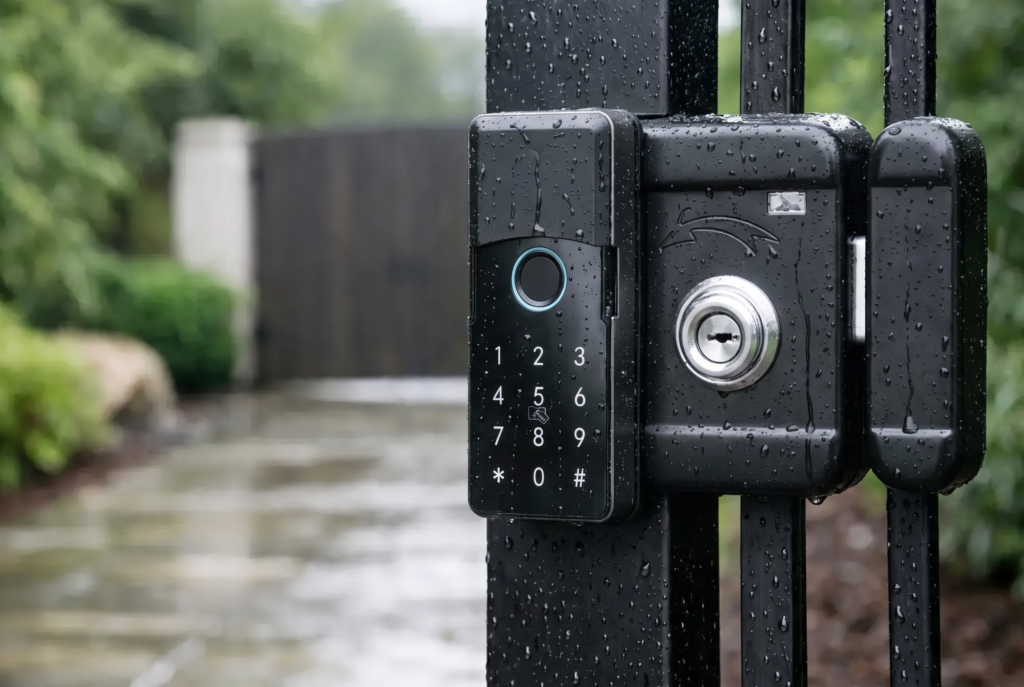
For a smart gate lock, test both pedestrian access and gate operation as applicable. Weather-resistant hardware still needs a stable update environment. If heavy rain, extreme heat, or poor signal affects the installation area, wait for better conditions rather than forcing the process.
What to Do If the Update Does Not Finish
A failed firmware update does not automatically mean the lock is damaged. In many cases, the app lost connection, the phone moved out of range, the batteries were weak, or the home network briefly dropped. Stay calm and avoid random resets.
First, wait a few minutes and check whether the lock has completed the process on its own. Review the app for a status message. If it shows an error, follow only the recovery steps provided by the manufacturer or authorized support team. Those steps may include reopening the app, refreshing the connection, moving closer to the lock, or restarting the lock according to the device instructions.
Do not delete user fingerprints, passcodes, or app pairing details unless support directs you to do so. A factory reset can remove access credentials and settings, creating more work and more opportunities for mistakes. It may be appropriate in a specific recovery case, but it should not be the first response.
If the lock cannot be operated normally after an update attempt, use your backup access method and contact professional support. This is where installation and after-sales service provide real value. A trained technician can assess battery condition, lock alignment, wireless setup, motor behavior, and device configuration without asking you to guess your way through a security-critical problem.
Updates Are Only One Part of Smart-Lock Care
Firmware keeps the digital side of a smart lock current, but reliable access also depends on the physical installation. A misaligned door, sticking gate, loose strike plate, or swollen door frame can make a perfectly updated lock appear faulty. If the motor sounds strained, the latch does not line up smoothly, or auto-lock is inconsistent, the issue may be mechanical rather than software-related.
It also helps to review access permissions after a major update or household change. Remove old temporary codes, confirm that family members still have the access they need, and make sure emergency contacts understand the backup entry plan. Landlords and property managers should review former tenant credentials promptly, rather than relying on an update to manage access automatically.
Genesis Singapore supports homeowners with connected lock solutions that combine advanced biometric access, app-based control, professional setup, and local after-sales care. For many households, that expert support is as valuable as the technology itself, particularly when a lock serves multiple family members and protects the home every day.
Treat a firmware update as a short maintenance appointment for your front door: choose the right moment, prepare carefully, and test every access method before life gets busy again. That small routine helps your smart lock remain the convenient, dependable part of home security it was designed to be.